Transform a crosstab table in Excel to a flat list quickly and accurately.
(Note: the video may not reflect the latest upgrades. Please use the guide below.)
Crosstab tables are also called two-dimensional (2D), or pivot tables. They present data in a concise and easy to read matrix with headers for columns and rows. But this layout is not suitable for PivotTable, charting, filtering, export to external systems, etc. That is why getting an accurate flat list from a crosstab table is essential for any powerful data analysis.
Unpivot Table converts crosstab tables to flat lists precisely and without macros:
- Flatten crosstab table to a list in seconds
- Transform complex tables with multilevel headers
- Correctly redesign tables with merged or blank cells
- Preserve column headers
- Preserve cell formatting
Before you begin, add Unpivot Table to Excel
Unpivot Table is one of the 20+ features within XLTools Add-in for Excel. Works in Excel 2024, 2019, 2016, 2013, 2010, and Microsoft 365.


How to unpivot a crosstab table in Excel to a flat list
- Click the Unpivot table button A window will appear.
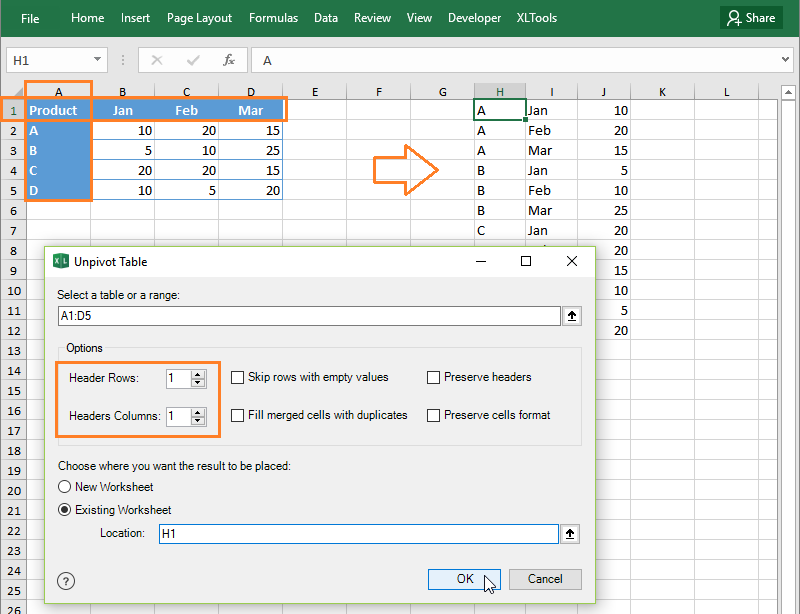
- Select a crosstab table including table headers.Tip:Click any cell in a table, and the entire table will be automatically selected.
- Validate table headers:In a simple table: Header Rows = 1, Header Columns = 1.
- Choose where to place the result: to a new or an existing worksheet.To place the flat list in an existing worksheet, select the starting cell (top left).
- Click OK Done. The add-in will autofit column width for the flat list.
 A window will appear.
How to unpivot a complex crosstab table with multilevel headers
Some crosstab tables may have a complex structure and multilevel headers. You can flatten them as well with XLTools:
- Click the Unpivot table button on XLTools tab A window will appear.
- Select a crosstab table including table headers.Tip:Click any cell in a table, and the entire table will be automatically selected.
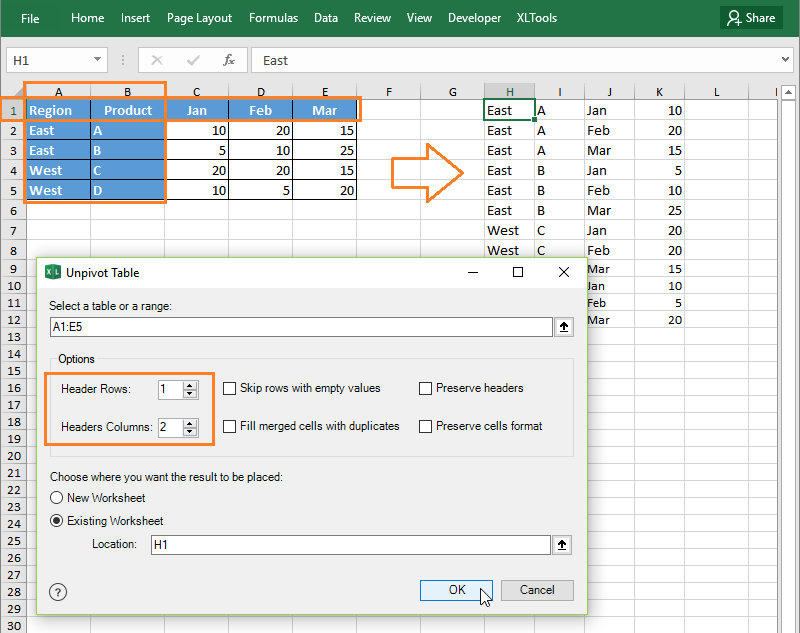
- Validate table headers:
- Header Rows: the number of rows that constitute table header on the top.
- Header Columns: the number of columns that make up table header on the left.
- Choose whether to place the result in a new or an existing worksheet.
- Click OK Done. The add-in will autofit column width for the flat list.
How to flatten a table with blank cells
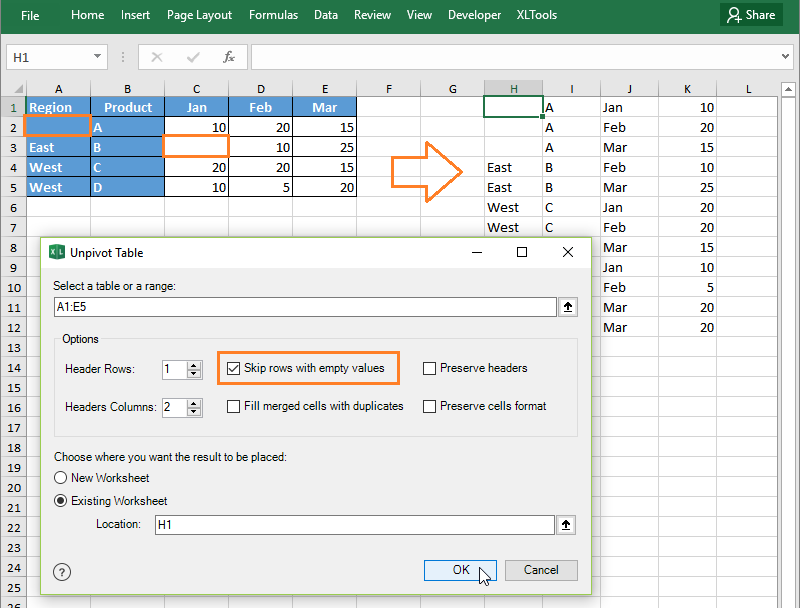
If your crosstab table contains blank cells, then the corresponding cells of the flat list will also be blank. However, empty values in a flat list do not provide any meaningful information for analysis. So we recommend that you do the following:
- If empty cells are located in table headers: fill out missing header labels prior to Unpivot.
- If empty cells are located in table body: you can omit corresponding rows in the flat list:
- Click the Unpivot table button on XLTools tab.
- Select a crosstab table including table headers.
- Validate table headers.
- Check the box Skip rows with empty values.
- Choose where to place the result.
- Click OK Done.
How to flatten a table with merged cells
- Click the Unpivot table button on XLTools tab.
- Select a crosstab table including table headers.
- Validate table headers.
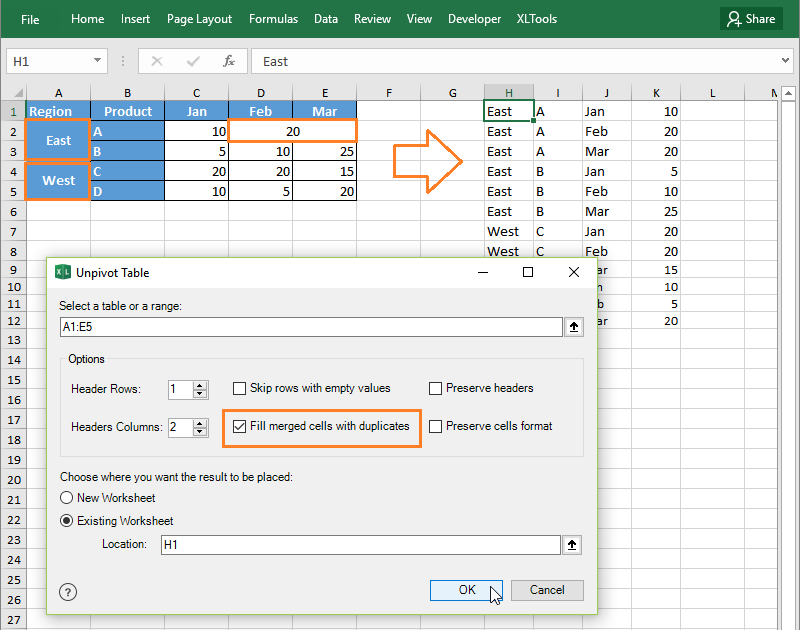
- Check the box Fill merged cells with duplicates:
- If merged cells are located in table headers: the contents of merged header cells will be automatically duplicated in each corresponding row of the flat list.
- If merged cells are located in table body: the values from merged cells will be automatically duplicated in each corresponding cell of the flat list.
- Choose where to place the result.
- Click OK Done.
How to flatten a table and preserve table headers
- Click the Unpivot table button on XLTools tab.
- Select a crosstab table including table headers.
- Validate table headers.
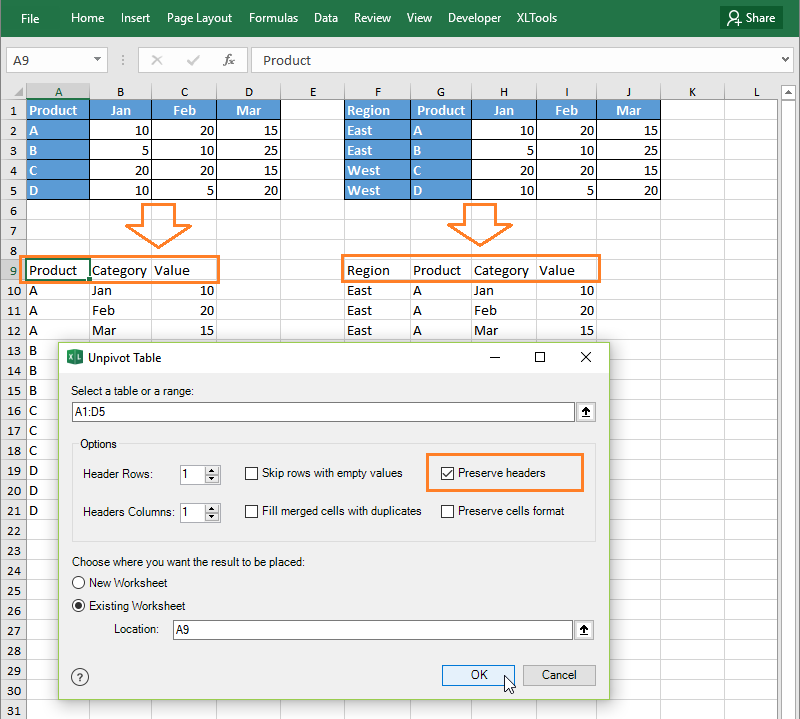
- Check the box Preserve headers:
- Where possible, the add-in will duplicate headers from the crosstab table.
- Table categories will be automatically assigned the label "Category".
- Table variable values will be automatically assigned the label "Value".
- Choose where to place the result.
- Click OK Done.
How to flatten a table and preserve cell formatting
- Click the Unpivot table button on XLTools tab.
- Select a crosstab table including table headers.
- Validate table headers.
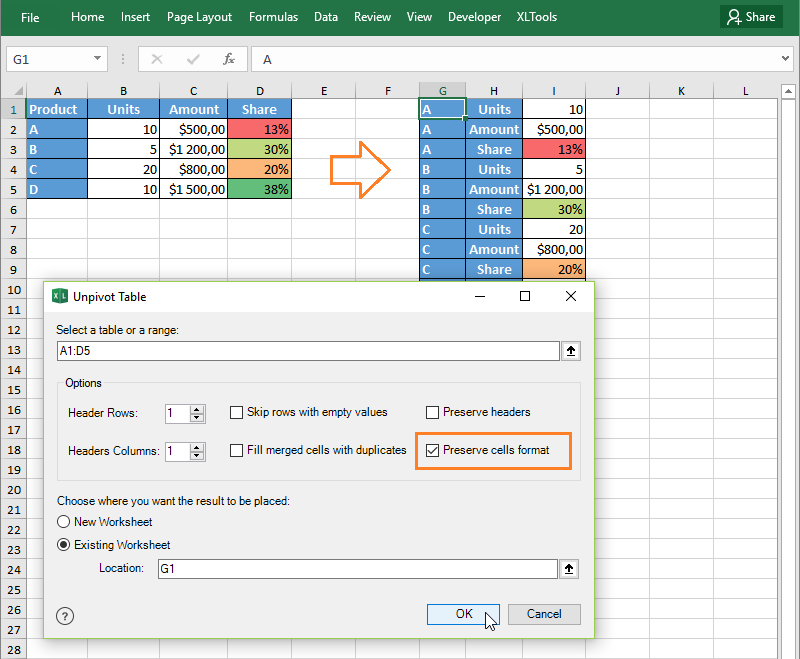
- Check the box Preserve cells format:Each cell will keep its format in the resulting flat list, including fill color, borders, font color, conditional formatting colors, general/number/date/currency format, etc.
- Choose where to place the result.
- Click OK Done.
Note:
Large tables with heavy formatting take longer to process.
Which tables does the Unpivot Table add-in process
Unpivoting a table essentially means that data from your source crosstab table are copied – and rearranged to form a flat list. Your source table is not changed and remains intact. To prevent data corruption, instead of cell references, functions or formulas in the crosstab table, XLTools Unpivot Table inserts their values into the resulting flat list.
The word 'table' in Excel is commonly used to name actually different things:
- A 'true' table – a named range with table style formatting (operation 'Format as Table'). Can be converted to a simple range.
- A range – a simple range of cells in a table-like layout, with or without formatting of background color, borders, etc. Can be converted to a 'true' table.
- A PivotTable – a dynamic table generated via Excel PivotTable operation. Cells cannot be edited.
XLTools Unpivot Table allows you to flatten 'true' tables and ranges. To flatten a PivotTable, first, copy the PivotTable and paste as values – this will create a simple range you can unpivot.


Dear,
I just started using unpivot and facing the same rounding numbers. The odd thing is that I have a table of 50 rows * 45 columns. I used unpivot function, but only numbers in some columns are round up to the integers. It doesn't happen with all columns though. Since your email posted years ago, I wonder if you found the solution by now. I would appreciate if I can learn the solution. THanks
Sorry to hear that you have this problem. So far, I cannot reproduce it on our computers. I will need more details - I have sent you an email.
I'm starting developing for office. I would like some tips. What would amelhor C # or VB.Net? What if you could've release the code "
"UNPIVOT Tables in Excel." to study?
We do not disclose XLTools code. Good luck in your studies though!