Insert dates in cells from a handy date picker with easy date formatting.
(Note: the video may not reflect the latest upgrades. Please use the guide below.)
Every time you start entering a date in a cell, you wonder… Should you type MM/DD/YYYY or use some other order? Should you use '/' or maybe '-' separator? Will the date format display exactly as you want? That's when an Excel date picker, or a drop down calendar, comes in handy. Indispensable even, when you manage personal or business to-do lists, appointments or timetables, project trackers or financial reports in Excel spreadsheets.
The Popup Calendar is a comprehensive and reliable date picker trusted by 30 000+ Excel users:
- Intuitive in use: click on a cell – pick a date
- Drops down near a cell, displays week numbers, days of the week and the current date
- Populates columns, rows or any ranges with date values in one click
- Numerous default date format options, preset and custom
- Works both in 64 bit and 32 bit Excel
Before you begin, add Popup Calendar to Excel
Popup Calendar is one of the 20+ features within XLTools Add-in for Excel. Works in Excel 2024, 2019, 2016, 2013, 2010, and Microsoft 365.


How to insert or change a date in a cell using the Popup Calendar
- Select a cell.
- In the Date/Time group, click the Insert Date button The date picker will drop down next to the cell.Or:Right-click and choose Insert Date.Or:Use a shortcut – press Ctrl + ; (semi-colon).
- Pick a date you need from the calendar Done.Note:Is it what you wanted? Learn how to change the default date format.
- To change a date value, click on the Calendar icon to the right of the cell Change date.
 The date picker will drop down next to the cell.
The Popup Calendar remembers the last used date, so it is easier to insert a date the next time.
Note:
After you enter a date, the cell is automatically assigned Number/Date format. If you delete the date value later, the cell will still keep its Date format, and the Popup Calendar icon will remain available for this blank cell. To remove the icon, change the cell's format to General.
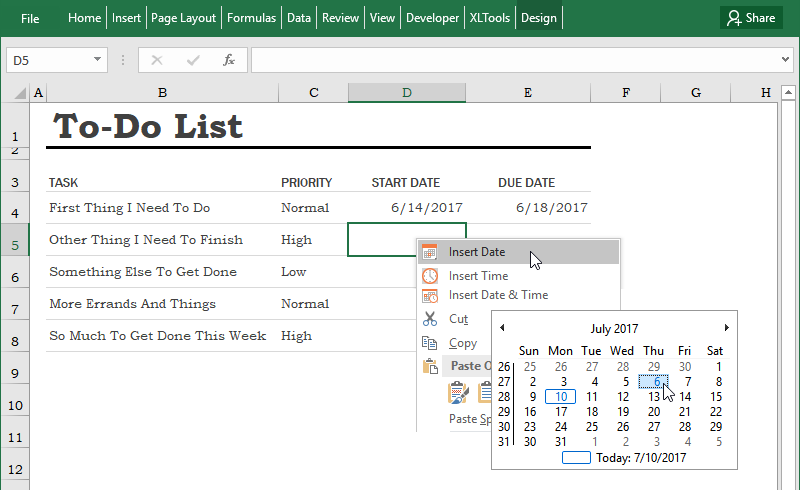
How to insert the current date in a cell from the date picker
- Select a cell where you want to insert the current date.
- In the Date/Time group, click the Insert Time button The Calendar will drop down.Or:Right-click and choose Insert date.Or:Use a shortcut – press Ctrl + ; (semi-colon).
- Click Today on the bottom of the Calendar Done.
How to populate an entire column, row or non-adjacent cells range with dates
You can use the Popup Calendar to fill in dates throughout an entire range (limitation up to 4000 cells). Populate table columns, rows, merged cells, non-adjacent cells or any custom range just the same, as a single cell:
- Select a range.
- In the Date/Time group, click the Insert Time button The Calendar will drop down.Or:Right-click and choose Insert Date.Or:Use a shortcut – press Ctrl + ; (semi-colon).
- Select a date Done. The whole range is populated with the selected date value.Tip:Learn how to populate cells with consecutive dates.
- To change a date in a specific cell, click on the Calendar icon to the right of the cell Change the date.
Note:
After you enter a date, the cells are automatically assigned Number/Date format. If you delete the date values later, the cells will still keep their Date format, and the Popup Calendar icon will remain available for these blank cells. To remove the icon, change the cells' format to General.
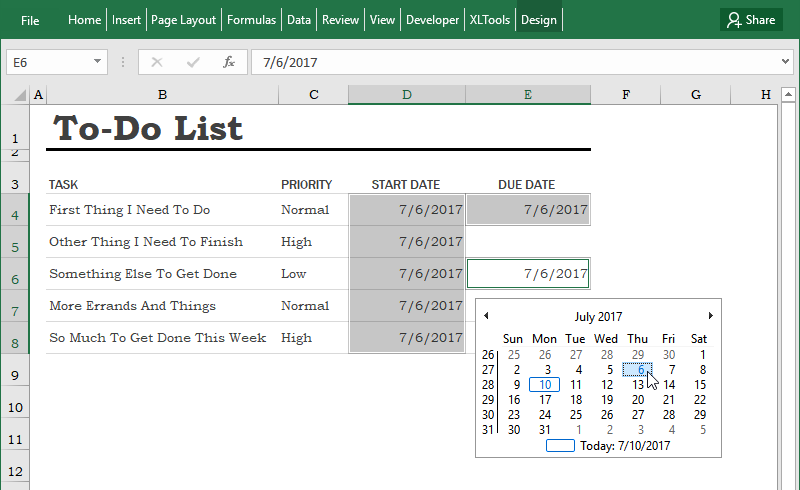
How to insert a From-To date period in cells
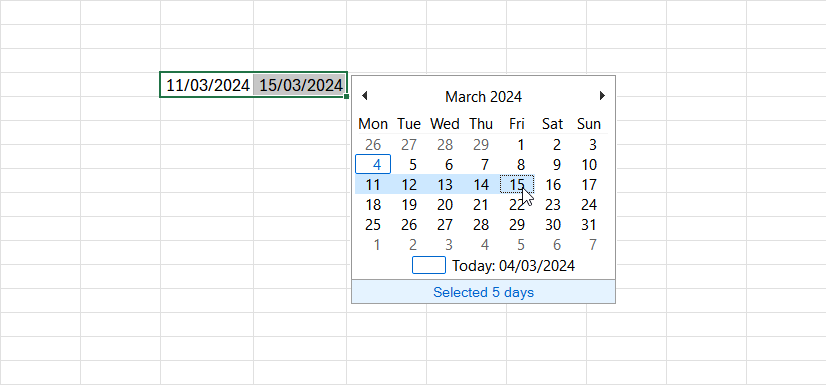
When you need to specify a date period, you can pick the From date and the To date from the calendar and insert them into cells instantly. It works similar to how you would select dates when booking a flight or a hotel.
For example, indicate vacation dates from Monday to Friday in your Excel absence tool, or enter lease dates for rental units, or specify a work day for hired freelancers, etc.
- Select two cells (adjacent or not).
- Click the Popup Calendar button on the XLTools ribbon.
- Pick the Start Date from the calendar Hold the left mouse button and move through the dates Release the button on the End Date Done.
These cells will have a date format and can be used in further calculations.
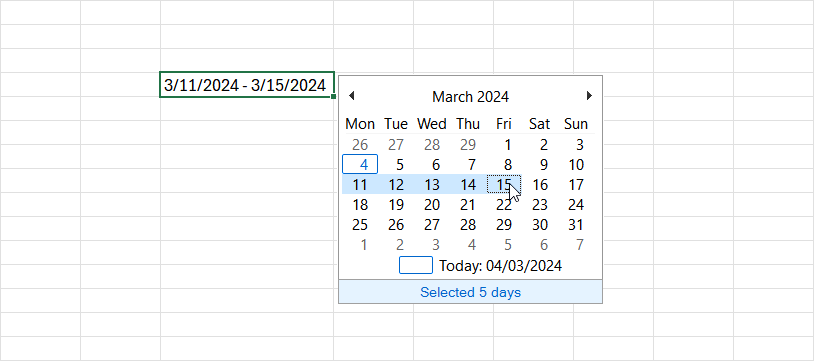
You can also insert a date period into a single cell.
- Select one cell.
- Click the Popup Calendar button on the XLTools ribbon.
- Pick the Start Date from the calendar Hold the left mouse button and move through the dates Release the button on the End Date Done.
Note that the cell will have text format, and you won't be able to apply formulas to it.
How to populate a range with consecutive dates
With the Popup Calendar you can quickly populate a range with consecutive dates (sequential days):
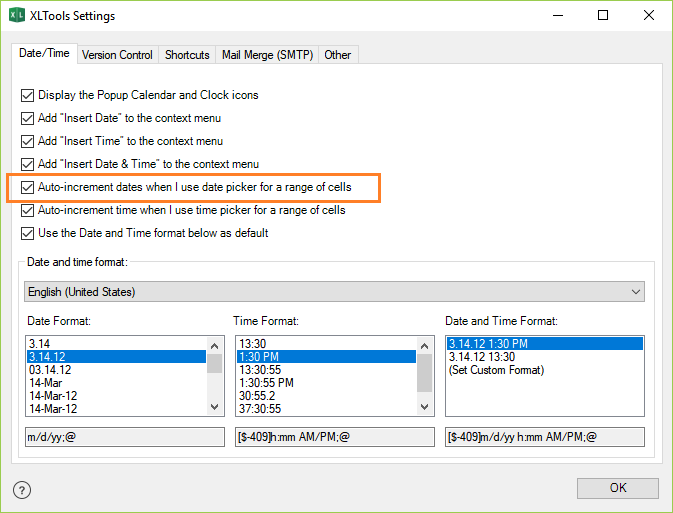
- XLTools tab Settings button Date/Time tab Check the box Auto-increment dates when I use date picker for a range of cells OK.
- Select a range.
- In the Date/Time group, click the Insert Date button The date picker will appear.Or:Right-click and choose Insert Date.Or:Use a shortcut – press Ctrl + ; (semi-colon).
- Pick the starting date to fill the range Done, the whole range is automatically filled with consecutive date values with 1 day increments.
How to insert both date and time into a cell
- Select a cell.
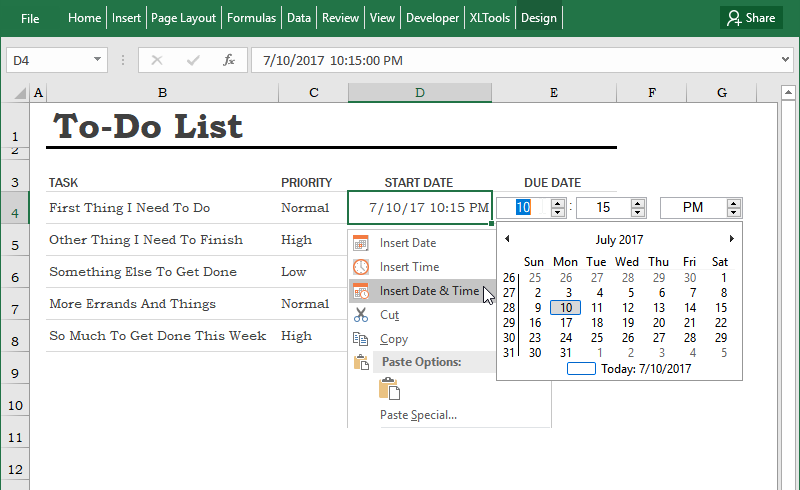
- In the Date/Time group, click the Date & Time button The Popup Calendar with Clock will appear next to the cell.Or:Right-click and Insert Date & Time.Or:Use a shortcut – press Ctrl + ; (semi-colon), then release the keys and press Ctrl + Shift + ; (semi-colon).
- Set the time by using a scroll wheel or the Up/Down arrows Choose a date from the Popup Calendar Done.Note:The time format: is it what you wanted? You can change the default format of the Popup Calendar and Clock.
- To change an entry, click on the icon to the right of the cell Change time and date.
Note:
After you enter date and time, the cell is automatically assigned Number/Date format. If you delete the value later, the cell will still keep its Date format, and the Popup Calendar with Clock icon will remain available for this blank cell. To remove the icon, change the cell's format to General.
How to insert only time (without date) into a cell
Use the Popup Clock time picker to set and insert time into cells and ranges:
- Select a cell or a range.
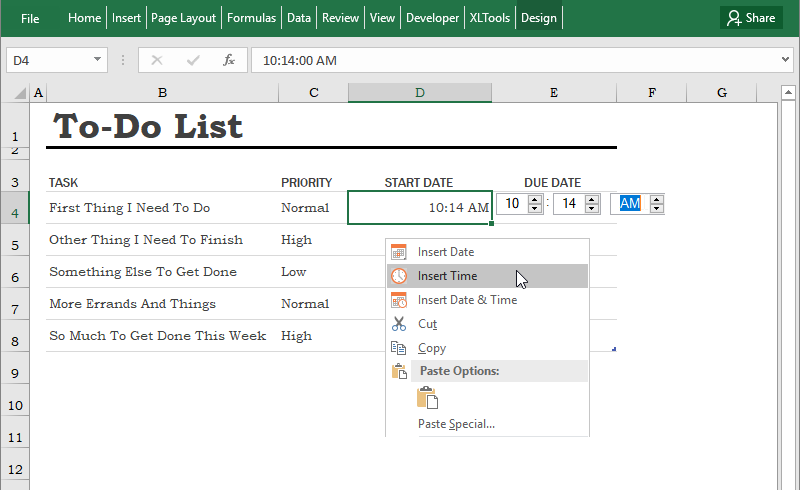
- In the Date/Time group, click the Insert Time button The Popup Clock will appear next to the cell.Or:Right-click and Insert Time.Or:Use a shortcut – press Ctrl + Shift + ; (semi-colon).
- Set the time by using a scroll wheel or the Up/Down arrows Press Enter Done.
How to change the default date format of the Popup Calendar
You can change the default date format of the Popup Calendar:
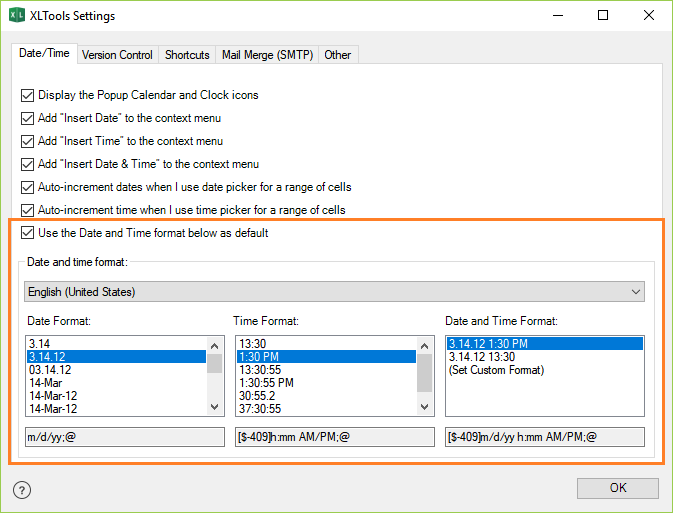
- Click Settings on XLTools ribbon Date/Time tab.
- Check the box Use the Date and Time format below as default.Note:If you uncheck this box, the Popup Calendar will use the format specified in your system settings.
- Select your preferred format, e.g. the format customary in your country or language.Or:Define and set your custom format.
- Click OK Done.
You may find that some cells would not comply with the Calendar's format settings. It means the cells had been assigned a different date format earlier. In this case, change the cells' format:
- Select cells Right-click and choose Format cells.
- Open Number tab Date format Select the required date format.
Initially, the Popup Calendar employs your system settings for default date and time format. You can change your system settings altogether. Note, this will affect all user accounts on your computer:
- Control Panel Clock, Language, and Region Region.
- Formats tab Set date and time formats, first day of the week.
- Location tab Set your home country location.
- Administrative tab Change system locale Restart your computer.
How to change a shortcut for the Popup Calendar
For your convenience, the default shortcut for the Popup Calendar is Ctrl + ; (semi-colon) – the same combination used in Excel to insert the current date. You can change the Popup Calendar shortcut at any time:
XLTools tab Settings button Shortcuts tab Set a different shortcut OK.
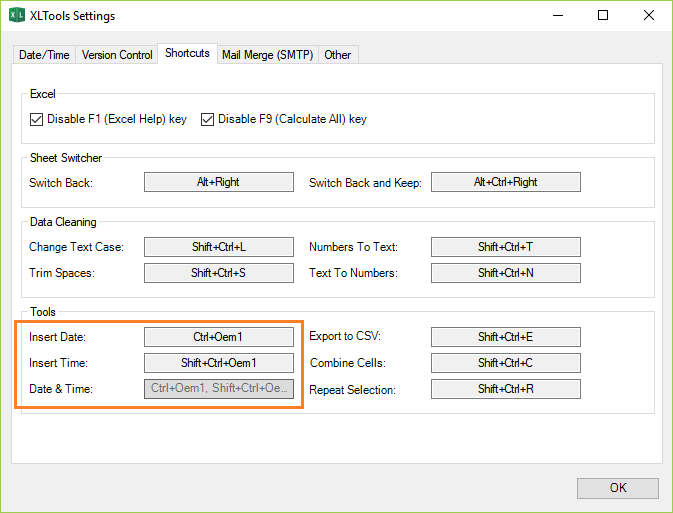
Customize Popup Calendar settings
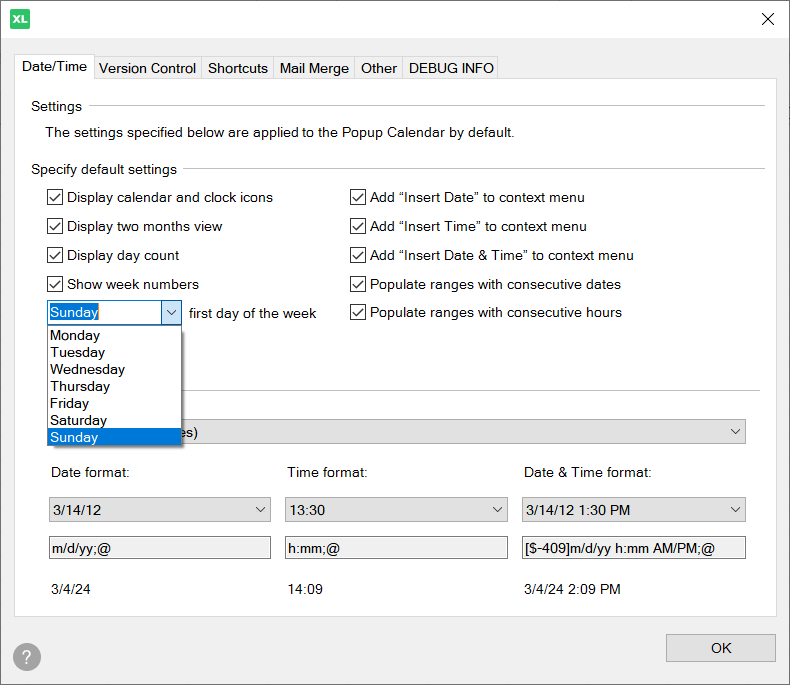
You can set up the way the Popup Calendar is displayed. You can choose to:
- Display one or two months at the same time
- Display week numbers or not
- Specify the first day of the week: Sunday, Monday, or any other
- Display Day Count panel or not
The Day Count panel shows the quick day count relative to the current date.
Hover over any date in the Popup Calendar — and see how many days it was before today or how many days after today. Or select a date period — and see the number of selected dates.
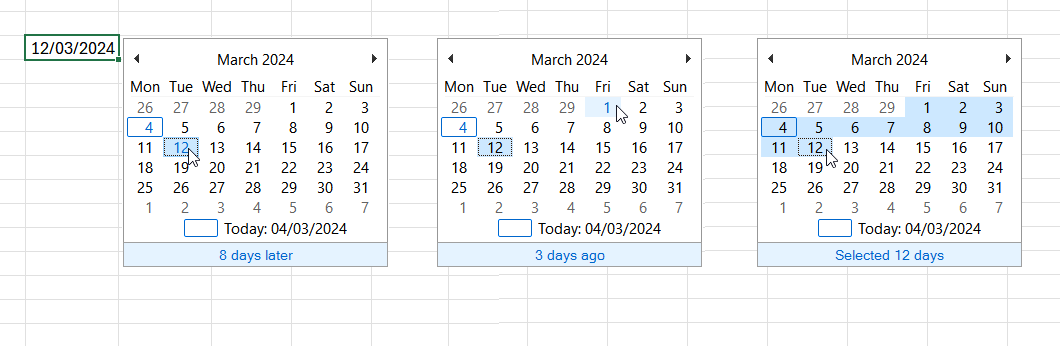
You can also choose to display two months at the same time, show week numbers, and set the first day of the week.
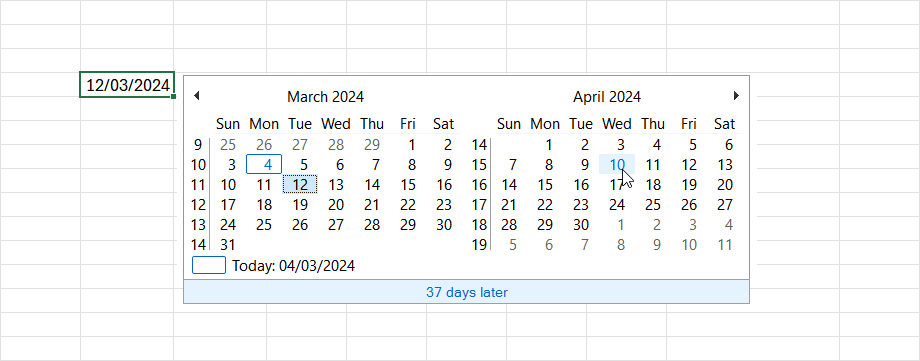
Specify these customization options as necessary in the settings:
- Click Settings on the XLTools ribbon Date/Time tab.
- Check the relevant boxes.
- Click OK Done.
How to add/remove the Popup Calendar icon
The Calendar icon appears to the right of a selected Excel cell, when the cell has Date format. Clicking the icon opens the date picker.
- To disable the Calendar icon:
- Click Settings on XLTools ribbon Date/Time tab.
- Uncheck the box Display the Popup Calendar and Clock icons OK.
- Done! The icons will not display, but the Calendar and Clock will still be available for use. You can bring the icons back at any time.
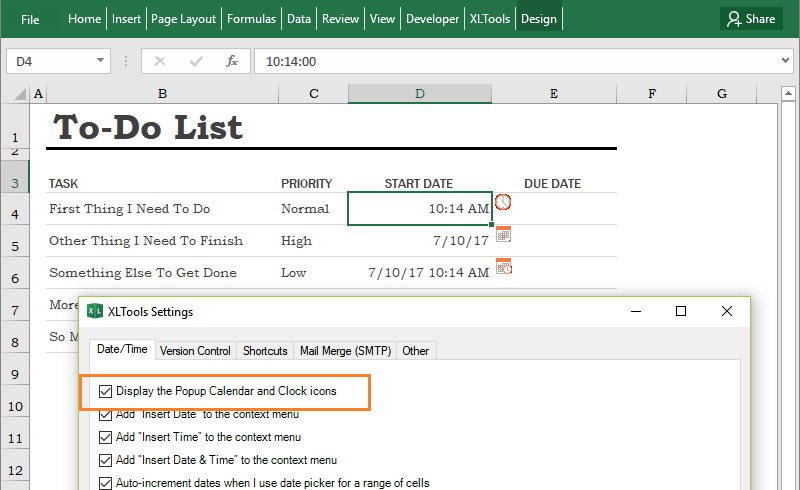
- To make the Calendar icon readily available near a blank cell, column, row or custom range:
- Select a blank cell or a range.
- Home tab Number group Date OK. This will assign time format to the cells.Or:Use the Popup Calendar to insert any date Press Delete. This will remove the actual date values and yet assign date format to the selected cells.
- Done! Now if you select any cell in this range, the Calendar icon will appear near that cell.
- To remove the Calendar icon from empty cells:If a cell is empty, but it still has an icon beside it, it means that the cell still has date or time format assigned. To remove the icon from blank cells, change their format back to General:
- Select a blank cell or a range.
- Home tab Number group General OK.
- Done! The Calendar icon will no longer appear near these cells.
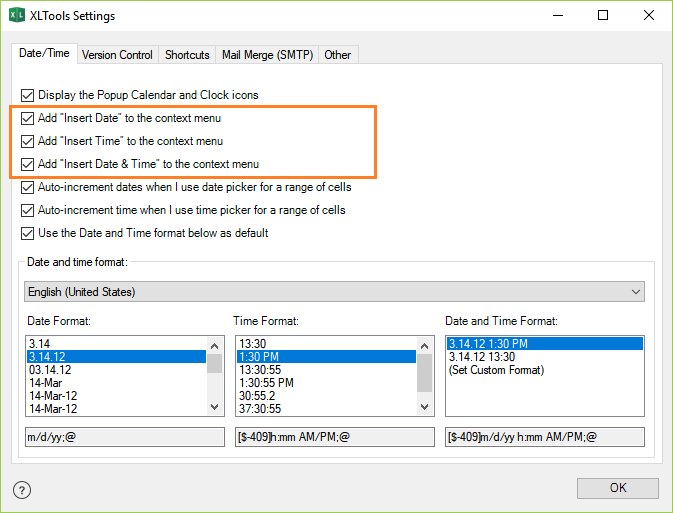
- Click Settings on XLTools ribbon Date/Time tab.
- Check/uncheck the relevant boxes:
- Add "Insert Date" to the context menu
- Add "Insert Time" to the context menu
- Add "Insert Date & Time" to the context menu
- Click OK Done.
How to embed a date picker into a spreadsheet
Try the Embedded Calendar feature. You can embed the Calendar into a workbook, and it will be available to other users of the workbook.


Thanks
Thanks for the update, however, I must be blind because I do not see the instructions on how to get it working. The pictures at the top of this page after "How to use XLTools Popup calendar in Excel?" do not explain in detail how to do it. I am new to Excel and perhaps I am blind as it is clear. I am using Excel 2010.
I downloaded the XLTools pop-up calendar. I can see the add-in in the COM add-in but I do not know how to access it.
Thank you for any help you can give.
Kirsten
Our popup calendar is working for cells with date format. When you use calendar to set a date for an empty cell it will automatically convert cell's format to date, so to revert it back you need to go to cell's format settings and select something like "General" or "Text".
Thanks for the quick response, really appreciated!! It is for paid period that I need to put dates like 1/1/14 - 1/7/14 in one cell. The program is awesome and thanks for sharing!!!
Have a wonderful day!!!
Best,
Michelle
What happen if I change my computer an excel application?
Regards
Hi team,
My antivirus blocked the installation it seems this is a malware. pls clarifi.
Thank you for reporting this! Which antivirus software do you have? We have tested vigorously for most common software. We guarantee that our XLTools add-ins are malware free.
I am receiving an error message saying
" Sorry, The Popup Calendar does not support Excel Workbooks with right-to-left display setting"
My excel display is bi-directional
Indeed, the Popup Calendar does support right-to-left worksheet display. But it works for left-to-right display settings: File > Options > Advanced > Display section > Default direction: Left-to-right.
The Popup Calendar itself is only visible to users who have XLTools installed. However, we also have an Embedded Calendar feature that lets you embed a date picker into a workbook and share it with others — they do not need XLTools installed. Please note that it may not work reliably in every environment due to differences in Windows/Excel versions and security settings, so we recommend giving it a try to see if it works for you.
For more information about the Popup Calendar, please see: XLTools Popup Calendar.
To use the Popup Calendar, please install XLTools. After installation, you will find the XLTools tab on Excel ribbon and you can take the free trial. Enjoy!
1. Select a range > Click on the Popup Calendar button on XLTools tab > the cells will be filled with the same date you have selected.
2. You can change the settings (XLTools Settings button, Calendar tab) and opt to increment dates > Select a range > Click on the Popup Calendar button on XLTools tab > the cells will be filled with the consequent dates, starting from the one you have selected (step value =1 day)
3. If you want the cells to be blank and yet have the Calendar icon available, you have to format the cells in Excel as “Date”. This works for small ranges, as well as for large tables – simple select a few cells, or a whole column and format it as “Date”. The Calendar icon will be available then for any cell in this range.
A great popup date utility, keep up the good work!
After reading all the feedback, lots of the questioners are asking the same question I was about to ask...
The ability to have your popup code embedded into a new file, so it can be sent to another user and just work.
Is it possible do you think? How far away are you from achieving it?
Thanks, Jerry.
Thank you for your question! A Popup Calendar embedded into a spreadsheet, or some sort of distributable template, seems a truly demanded feature. We have researched possible approaches to develop such a template, but came across a few technical bottlenecks. Roughly, instead of extending functionality of our XLTools Popup Calendar, it would have to be a completely different product. So we have decided to put the idea of a distributable calendar on hold.
But if you think of anything else we can improve with the Popup Calendar or the other features - please let us know. At the moment we focus our development efforts on improving current XLTools functionality and usability. Thanks again!
I like the Add-in but am having trouble with the ability to not show the calendar options in the right click menu. I have the boxes unchecked in the settings but they still show.
Any help would be great!
Thanks!
Joe
The value of the property 'type' cannot be parsed. The error is: Could not load file or assembly
...............
This happens sometimes. Please find the ‘xltools.exe’ file in the ‘My Computer (or This PC)/Downloads’ folder (browsers normally save all downloaded files to this folder).
Then right-click ‘Run as administrator’. The installation should proceed smoothly!
When I use an embedded Excel workbook in Word and I click on it, it does not want to open and give me an error message. It only starts to work again when I unistall XLTools. Is there anyway around this issue?
Thank you,
Hermien
You are probably getting the error "Excel is waiting for another application to complete an OLE action". This problem is rather common for Excel add-ins, and we will try to fix it for XLTools.
For now, I would recommend you to disable XLTools for the time you are working with embedded workbooks in Word:
Open Excel > Options > Add-ins on the left side bar > select “COM Add-ins” in the “Manage” drop down menu (in the bottom)> Go > Untick the box with XLTools add-in.
You can enable XLTools any time, when you are back working in Excel. Thank you for reporting this error, we will work on it!
We are moving over to 64-bit Office, a lot of our apps use Microsoft's Datepicker functionality which is no longer supported in 64-bit (why I don't know). Would you be able to confirm if XLTools is compatible with Office 64?
Rgds
Graham
Yes, XLTools is compatible with Office 64. Please note - our datepicker (the Popup Calendar) and the other add-ins are developed only for Excel, not the whole Office.
As per Manish's request above, I would also like to share my workbook with colleagues as is to actually a 'how to' workbook for entering expense dates at my workplace but my colleagues will not be able to download XLTools due to administrative restrictions. Is there any chance that you may enable this popup calendar on shared workbooks without downloading your Tool yet? This would be fantastic as I am trying to make like easier for my colleagues by providing them with as many shortcuts as possible.
Once again thank you so very much.
Regards
Jane
We now have an Embedded Calendar feature that lets you embed a date picker into a workbook and share it with your colleagues — they do not need XLTools installed. Please note that it may not work reliably in every environment due to differences in Windows/Excel versions and security settings, so we recommend giving it a try to see if it works for your setup.
Thank you again and enjoy XLTools!
I downloaded this for the Calendar popup. However, I have 2 problems
1) This seems to have been discussed above, and there seems to be no answer to it yet - is that I need to share this workbook, and the other folks will not have the XLTools Add-In.
2) I need the popup to appear on click of an image or a button. So, say I have a cell where I want the date to be input, I would place a button next to it; on click of this button/hyperlink, I want to open the calendar popup which will put the date in the adjacent cell. How do I do it?
With all the above questions, I would like to thank the creators of this for a wonderful tool - with or without what I am asking above.
Regards,
Manish
1) The Popup Calendar itself is only visible to users who have XLTools installed. However, we now have an Embedded Calendar feature that lets you embed a date picker into a workbook and share it with other users without them needing XLTools. Please note that it may not work reliably in every environment due to differences in Windows/Excel versions and security settings, so give it a try and see if it works for your setup.
2) Unfortunately, you cannot "attach" the Popup Calendar to an image or a button.
Thank you - happy to hear XLTools is a useful tool!
I would just like to support Andreas Winkler request for filling cells with the same date. It was the future i properly used the most.... LOL
Maybe you clever people can solve it by adding a future or tick box in setting to enable this function.
but i would like to say thank for creation this software it is pretty awesome to use by people like my who dont know to must about pc's
Regards
Please, try to download and install XLTools again. We have released a new version 3.5.3.2 today where we added a new setting, so you can manage whether you want to insert the same date or use increment.
Please, try to download and install XLTools again. We have released a new version 3.5.3.2 today. The problem you reported should be fixed there.
Thank
Mal
Yes, since version 3.5 you can select the default format for the calendar in the Settings. Please try to open Settings -> Calendar -> check "Select Default Date Format" and find the format you need in the list.
Since the update I cant fill more cells with the same date now its fills 01/01 02/01 03/01. its there an option ti change it how it was before? thanks so much.
Andreas
Thank you for your question. You are right, due to requests from other users we have changed this logic in version 3.5. We will think about creation of a new setting for this case, so you can use it like you prefer.
I have downloaded XL Tools however cant seem to find out how to import this into excel.
I may be being stupid but how do I do this?
Thanks,
Cheryl
How can I get the calendar popup to work with Excel 2007?
Thanks!
Mor
You just need to install it. Please, follow the instructions here.
There is nothing special for Excel 2007.
I have been struggling for the past two days to somehow get a pop up calendar for users
I am quite computer illiterate so please excuse me if the answer to my question is obvious and known to most
I downloaded your program to my computer and it works like a charm for my excel workbooks
if I email a work book to be used by someone else - different computer - will the program work on that computer too as long as the same work book is used?
If so
will the program work if I use a workbook from this computer as a template and it is used to create different workbooks?
This is what I really wanted the program for - for others in the team to be able to input the dates and other data
thanks a ton
rupi
Unfortunately, it would not work if you just email your workbook to someone else. Our popup calendar will only work if other people who use the same workbook have XLTools installed too.
I just installed the tools and it is exactly what I was looking for. I am using this as tracking document in a support desk environment and want to know if i send this to other employees as a template to use do they also have to install the tool kit?
Yes they will need to install XLTools if they want to use calendar. Unfortunately you can not embed the calendar into your workbook yet.
I see from prior posts that we can not save a file with date picker saved in it so a user can use it with that function. The solution is to install the add in on their clients. I also noted in late 2014 you said it would be coming in a future release.
This date picker functionality is GREAT. Do you have status on your proposed roll date to be able to save the date picker into a spreadsheet for end users without the add on to be able to use?
Please let me know.
Thanks
Mark
Thank you for your question. We have done a bit more of research on this topic and it looks like this task it not straightforward. We are still looking for some robust solution to get it done, but I am not sure whether the solution even exist, so I can not say exact date when we have this feature implemented.
There are some difficulties with x64 and x86 versions of Excel + the only way to embed calendar is to add some VBA to the spreadsheet which means that look & feel of the calendar would be different.
first of all Thanks!
when I tray to insert the Calendar in cell D9 for example
the icon is appear in N9
there is a way the icon well appear in the same cell of the date?
Yes, you can turn it off completely in settings. There is checkbox where you can completely disable popup calendar.
I really like your "Popup Calendar for Excel"! I've tried many others from the web but most of them failed to work correctly when I sent my Excel form by email to other users.
This one keeps working perfect!
The only drawback I don't seem to get resolved is the fact that it only supports the 'Englis US' date- and time format.
I'm looking for the Europan date format including the time; i.e. 14 March 2015 1:35PM has to be shown in Excel as: 14-03-2014 13:35.
Is there any way to set this date & time format accordingly?
Thanks & regards,
Arnaud.
Thank you for your question. We will add support for European date formats in the next release. Stay tuned! We'll let you know when next version is out.
Looking forward for the next release...
Cheers,
Arnaud.
Thanks for your question. Popup Calendar Add-In will only work if a person who opens Excel file would have XLTools Add-In installed on his PC.
Thank you for building this for us users!! I am trying to use the popup calendar, the date works great but for some reason I can't adjust the time. What am I doing wrong? I don't get the bar at the top of the calendar to pick a time. I just see the blue header with the month name and the year on it. I have the cell formatted as m/d/yyyy h:mm.
Thanks very much for your help!
Heike
Thank you for your response!
Unfortunately, I can not reproduce the problem on my PC. Please, send me a sample workbook where you see that problem (I will write you on email now, so you can reply with attachment).
kind regard
mano
Thank you for your feedback. I really appreciate it.
Please could you tell me how to incorporate it into a UserForm?
Richard
Unfortunately it is not possible to use our Popup Calendar on UserForm.
Thanks for XLTools!
Is it possible to adjust pop up calendar to show the day first (in this format day/month/year)?
Regards,
Ana
Yes, it will be possible in the next version of XLTools which we plan to release really soon.
Keep in touch!
If I use your utility in a spreadsheet, and then send the spreadsheet to someone else, will the date picker work for them if they haven't installed the utility?
Thank you for your question. Unfortunately it is not yet possible, but we plan to add this feature in the future.
I just have the same request as Jons and Nichola. I have been looking for a date picker like yours but I need for it to be able for users to be able to select the dates when I send the program out and they send back the completed file back to me.
Thank you again Peter for a wonderful program!
I would appreciate the answer to this question also as this was the first thing that came into my mind!
Thanks :-)
Thank you for reporting this issue!
Yes, you are right. The problem caused by freezed rows/columns. It is a known issue and we will fix it in the next version of XLTools. We are going to release within a next couple weeks. I will let you know when it is release.
I use Office 2010 and I have a sheet with a Table on it, unfortunately the "Select date" doesn't appear when I right click a table. Is there a way to make it happen ? Or, is it possible to create a shortcut with VBA with the same function (alt+q, for exemple) ?
It seems like you have XLTools 2.2 installed. In the new version (which was released yeaderday) we have fixed this problem. You need to upgrade to XLTools 3.0 in order to fix this issue.
In XLTools 3.0 there is also an option to customize shortcuts. By default Ctrl+Shift+D is set to show a Popup Calendar.
Give it a try! And please, do let me know if you have any other question!
I'm definately going to recommend your software here in Brazil.
Cheers mate!
Thanks for your program!! Is there any way that I can Post like 1/1/14 - 1/7/14 in one cell ? If yes, how? Please advise. Thanks!!!
Best
Michelle
Unfortunately, there is no way to enter this value in one cell with our Popup Calendar. But, why do not you want to split this value into two cells? You can even use 3 cells and format this value to look like it is just one single values.
Please, let us know what you think about above ideas!
Best Regards,
Peter Liapin
The Datepicker in Word would be ideal as it has a dropdown arrow to select the date but the default text is "Click here to enter a date" I note that if I use your calendar to insert a date, an icon will appear for users to very simply change the date, however this document will be of a legal nature and may end up as evidence in court proceedings etc, so I cannot have an old/incorrect date in the cell as a default for situations where no entry was required, as it would look like that date had actually been selected.
Also, is there a way to choose 'longform' dates such as Saturday 3 May 2014 rather than 3/5/14.
Again, thanks for your program and your online support. :)
We plan to add an ability to show date picker icon for the cells with datetime format set. I think we will release this with the upcoming version of XLTools. So, in your form you will need to select empty cells which supposed to be date or datetime and set required date format using standard Excel functionality (i.e. Format Cells -> Select target Date format -> OK).
You can use ‘longform’ dates if you change the date format for particular cell/cells (see instructions above) – calendar should still work with the new date format.
I hope you enjoy using XLTools - keep in touch!
Unfortunately there is no easy way to do it, but we will try to look at potential solutions. I will let you know if we find how to fix this problem.
I found a work around solution for the time being. I merged the calendar cell with the one next to it and now can see the arrow.
:)
I'm glad you found the this workaround and I hope you enjoy using our Popup Calendar add-in!
Please, let us know if you will have any other questions/proposals!