Beta
This is a new feature and we can’t wait to hear your feedback. Just let us know. Use with caution: beta features may contain some bugs and rough edges. To test the feature, start a free trial or update to the latest XLTools version.
GPT function - Execute AI-driven prompts directly in Excel.
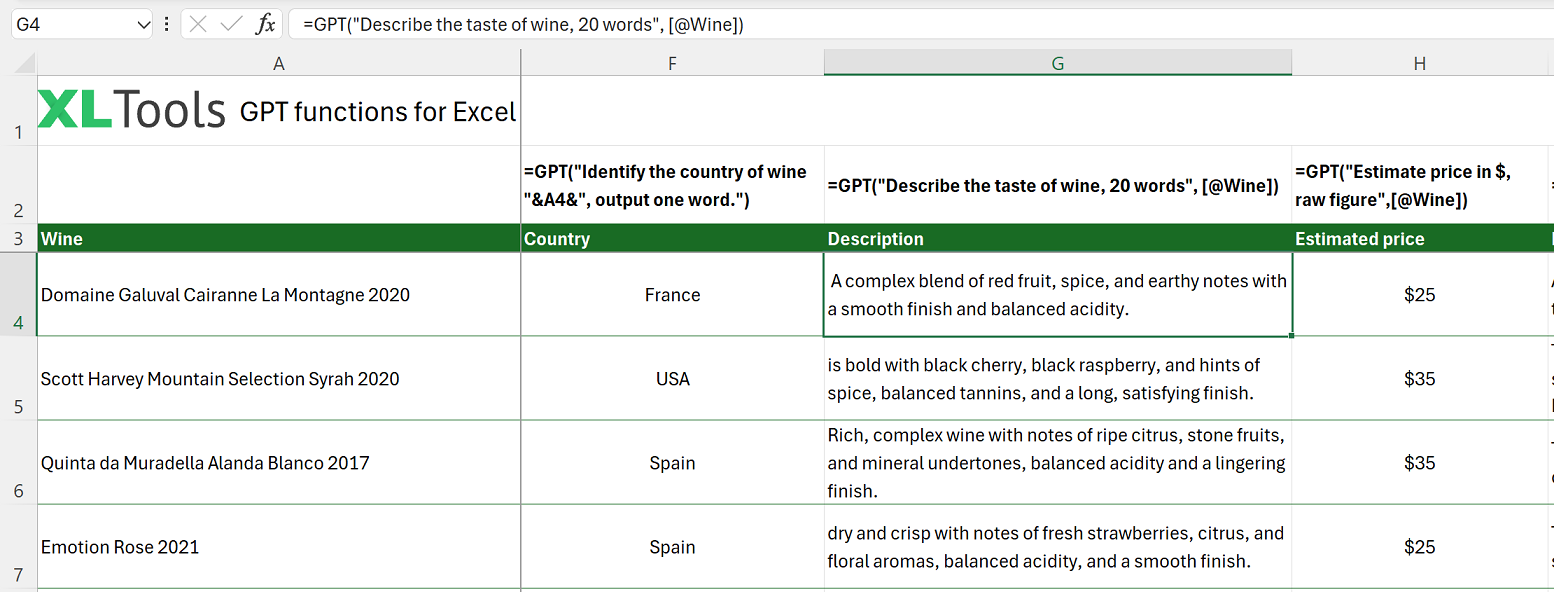
GPT is an AI function that executes a given prompt and returns a response from GPT in a single cell.
Syntax
| Argument | Description |
|---|---|
| prompt [required] | The instruction provided to GPT to generate a result. Cannot be empty. |
| value [optional] | Additional information GPT might need to process the prompt. |
Before you begin, add Functions to Excel
Functions are one of the 20+ features within XLTools Add-in for Excel. Works in Excel 2024, 2019, 2016, 2013, 2010, and Microsoft 365.


Examples [download]
Download this spreadsheet with examples and try the function yourself.
| Formula | Description | Result |
|---|---|---|
=GPT("Write a tagline for an ice cream shop.") | Returns a creative tagline for an ice cream shop. | "Indulge in a scoop of happiness!" |
=GPT(A1) | Executes the prompt found in cell A1 and returns the response. | Depends on the prompt in A1 |
=GPT("Summarize this article", B2) | Summarizes the article text found in cell B2. | "This article discusses the latest trends in AI technology." |
Any questions or suggestions?

