Safely keep revision history of Excel VBA projects, track and compare changes in macros.
(Note: the video may not reflect the latest upgrades. Please use the guide below.)
Apart from keeping track of changes to Excel workbooks, XLTools Add-in also allows tracking changes to VBA projects. This unique feature is essential for advanced users and Excel VBA developers. It helps compare changes in code, save VBA modules to Git repository or roll back to a previously committed version of macro.
XLTools Version Control add-in keeps your Excel macros safe:
- Track changes made to a VBA project and commit versions in a click
- Review change log and see who modified the code and when
- Recover and roll back to any previous version
- Compare VBA module versions side by side and highlight changes
- Store revision history in a Git repository on your own PC
Before you begin, add Version Control to Excel
Version Control for VBA Projects is one of the 20+ features within XLTools Add-in for Excel. Works in Excel 2024, 2019, 2016, 2013, 2010, and Microsoft 365.


How to enable Version Control for VBA projects and start tracking changes
XLTools Version Control add-in for VBA is a revision control, or a source control tool. It helps track changes to VBA projects in Excel and gives a clear picture of who, how and when modified the script.
- Enable Developer macro settings:Developer tab Macro Security Check "Trust access to the VBA project object model".Or:File Options Trust Center Trust Center Settings Macro Settings Check "Trust access to the VBA project object model"
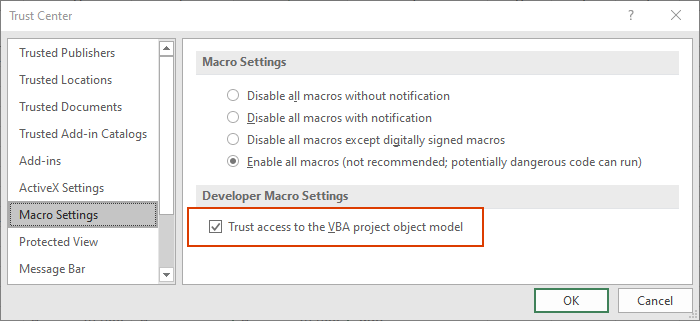
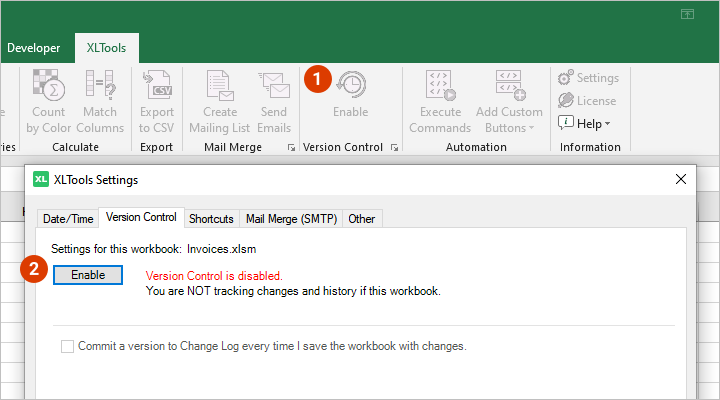
- Enable Version Control for the Excel workbook:Open the workbook Click the Enable button on XLTools ribbon In the Settings window, click Enable Done, now you are tracking changes and history of the spreadsheet.Or:Open XLTools Settings Version Control tab Enable.
 Macro Security
How to commit versions of a VBA module to Change Log
Once you enable Version Control in a workbook with macros, we recommend you commit the initial version to the Change Log. This will allow you to compare future versions with it, as well as restore the initial version if necessary.
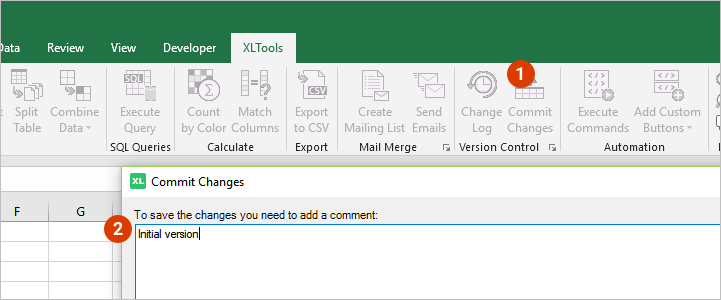
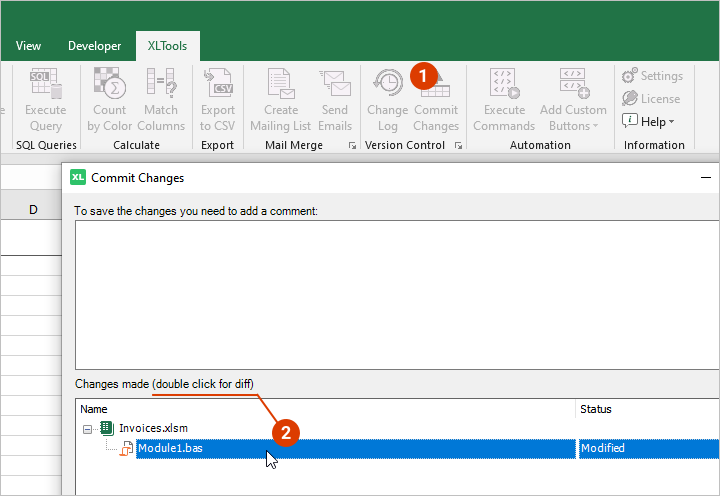
- Click the Commit Changes button A dialogue box will open.
- Add a descriptive comment, e.g. "Initial version" OK Done, the initial version is saved to Change Log.
As you keep editing the workbook or the macro, keep committing versions along the way. We recommend you commit a version after any critical changes, or as often as often as you find necessary.
- Make changes When ready to commit the version, click Commit Changes.
- Add a comment OK.
Tip:Create descriptive comments. It will help tell the versions apart and search for the necessary version in the Change Log.
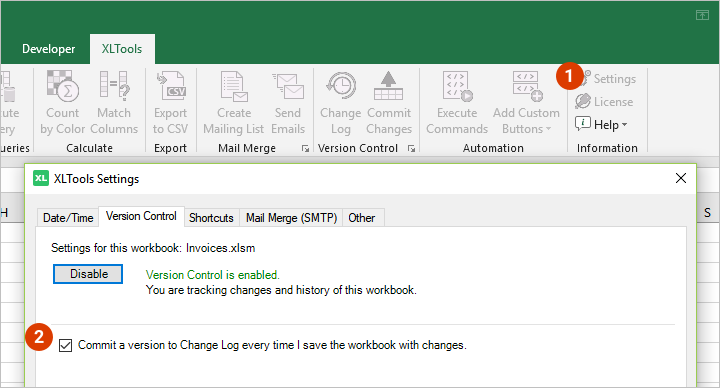
By default, a version is committed to Change Log through the Commit Changes button on the ribbon. If you want to commit a version every time you save the file, specify this in the settings:
- Open XLTools Settings Version Control tab.
- Check the box "Commit a version to Change Log every time I save a workbook with changes".
How to preview and diff recent changes to VBA code before committing a version
- Edit the VBA module Click Commit Changes A window will open.
- To preview and diff changes, double-click on the modified VBA module name in the list.
- The side-by-side comparison of the Older and the Newer versions of the script will display. The changed lines will be highlighted.
- Review the result Close the comparison window Click OK to commit this new version, or Cancel to go back to editing.
How versions of Excel VBA macros are saved to Git repository
All versions of a workbook that were committed to the Change Log are saved to the Git repository on your computer. Being a widely adopted system for revision control, Git accurately records all changes and does not take much of your disk space.
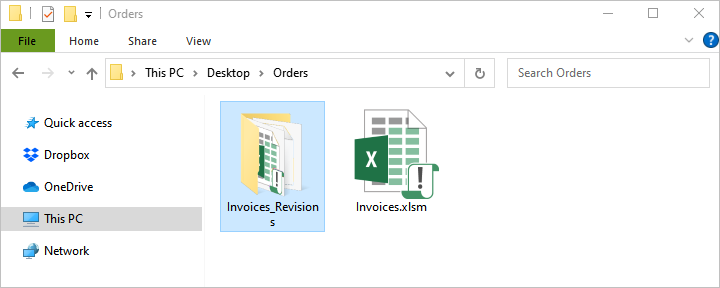
Immediately after you enable Version Control, a folder 'WorkbookName_Revisions' is automatically generated in the same destination as the workbook. This is the Git repository that will safely store all revision history of the workbook and macros. Every time you commit a version, it is saved to the repository.
Important:Do NOT delete, rename or move this repository folder. Otherwise the revision history will be lost.
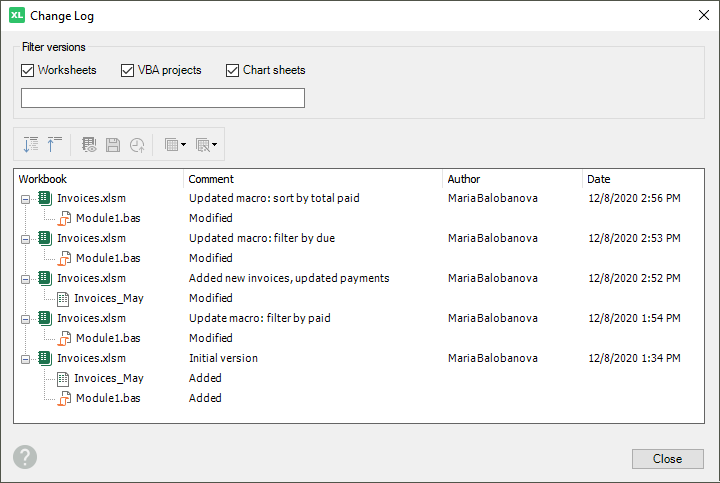
The Change Log shows the list of all previously committed versions.
Click the Change Log button on XLTools tab The Change Log will open.
- Review the list of versions: it displays comments, authors and the time the version was committed. You can see who made changes and when.
- Filter the committed versions and search for the version you need. Type what you are looking for, and the search will run through version names, comments, authors and dates.
- Review the tools in the menu: you can expand and collapse the list, open, save, roll back to, diff and compare versions.
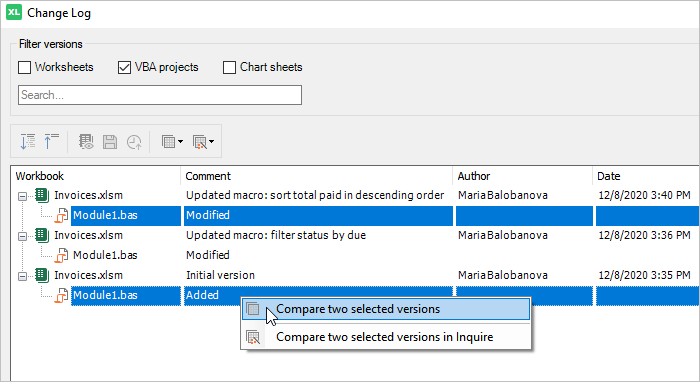
How to compare two versions of a VBA macro
You can easily compare two versions of a macro with each other:
- Click the Change Log button The log will open.
- Hold the Ctrl key and select two versions of the VBA module you want to compare In the log's menu, or in the right-click context menu, select Compare two selected versions.
- The side-by-side comparison of the Newer and the Older script will open. The changed lines will be highlighted.
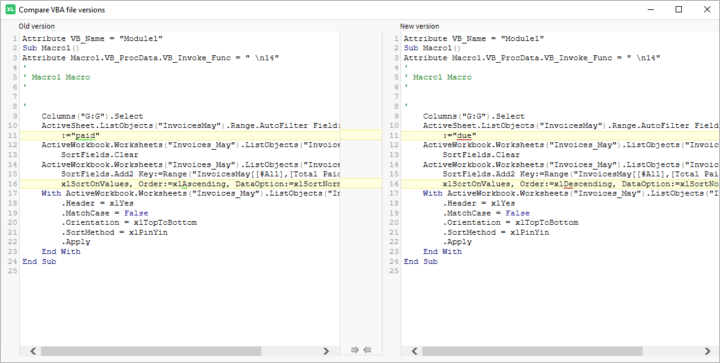
In the same way, you can compare any VBA module version with the previous or the current version:
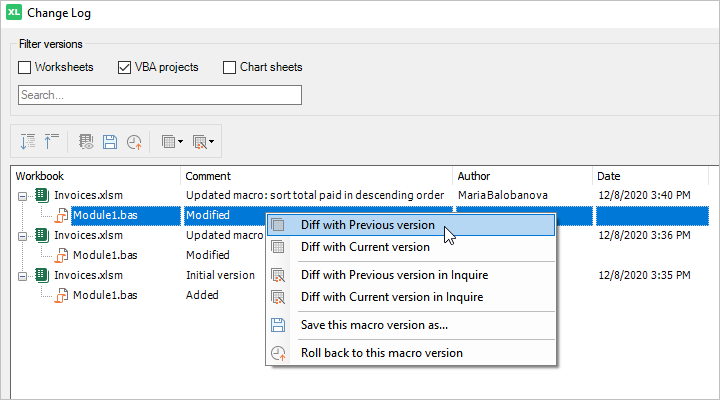
- Click the Change Log button Select any module version.
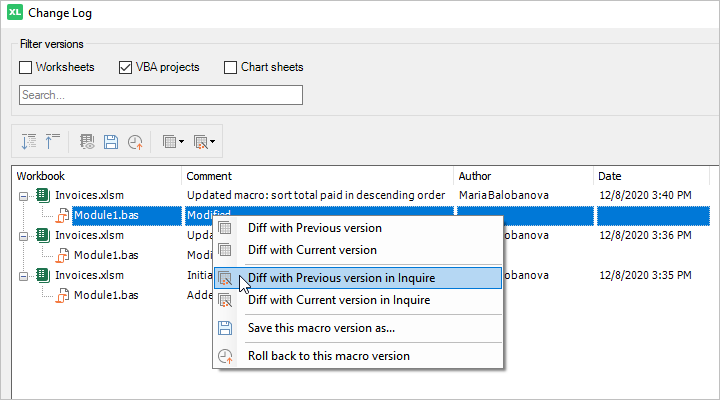
- In the log's menu, or in the right-click context menu, select Diff with Previous version or Diff with Current version.
- The comparison will open, and the modified lines will be highlighted.
How to compare two versions of a VBA macro with Inquire Add-in
The Version Control tool is integrated with the Inquire plugin. It helps compare spreadsheet versions in more detail.
The Inquire plugin is a free plugin by Microsoft, available in Office Professional Plus edition. See how to turn on Inquire in Excel.
- Click the Change Log button The log will open.
- Hold the Ctrl key and select two versions of the VBA module you want to compare In the log's menu, or in the right-click context menu, select Compare two selected versions in Inquire.
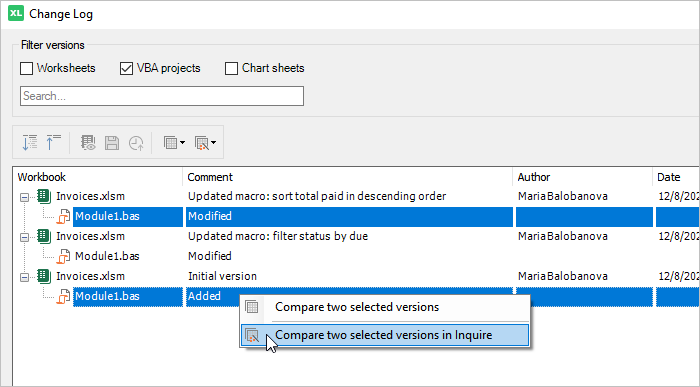
- The result of the comparison will open in Inquire: review the changes in code.
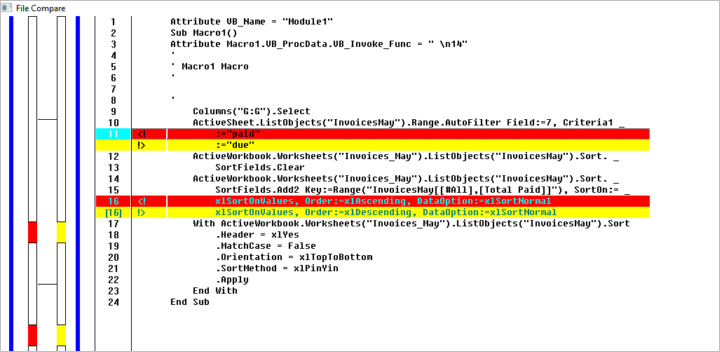
In the same way, you can compare any VBA module version with the previous or the current version:
- Click the Change Log button Select any module version.
- In the log's menu, or in the right-click context menu, select Diff with Previous version in Inquire or Diff with Current version in Inquire.
- The comparison will open in Inquire and you can review the changes.
How to restore and roll back to a previous version of Excel macro
To save or roll back to any previous version of Excel macro:
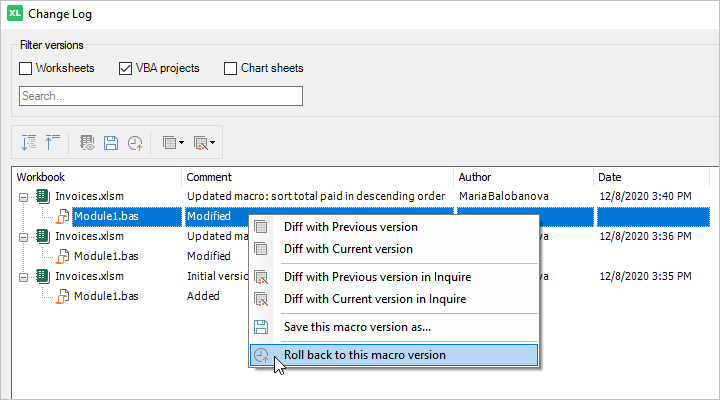
- Click the Change Log button Select the VBA module version you need.
- In the log's menu, or in the right-click context menu, select the operation you need:
- Save this macro version as
- Roll back to this macro version
XLTools Version Control add-in helps arrange group work and collaborate on shared spreadsheets effectively.
- Make sure that all your team members have XLTools add-in installed on their PCs.
- Place the workbook in a shared folder on a local disk Share the workbook with your team Provide reading and writing permissions. This prevents anyone outside the group from editing the workbook under versioning.
- Each member can commit and compare versions and view the Change Log.
How to use Version Control to track changes in Excel workbooks
Whether or not your spreadsheet contains macros, when you enable Version Control you can also track and compare changes in worksheets.
Limitations when using Version Control
When the spreadsheet is stored on a network folder or a cloud drive, Version Control may return file path errors ("pathname is too long"). In order to store revision history, the Git repository creates nested folders and sometimes the paths to these subfolders may exceed the limitation set in Windows.
Our development team is already searching for a workaround. In the meanwhile, we recommend you try and shorten the network path, as well as the name of the spreadsheet. Or, save the spreadsheets on the local disk on your computer.


this will help us to make decision in purchasing your addin
I would like to know is there any possibilities to restore a file using VBA codes?.
Does versioning work also with excel files with old .xls format?
Not yet, indeed. It is in our development schedule, though.
And yes, Version Control also works for files in .xls format.