XL.FormatPhoneNumber function: format a string as a phone number.
XL.FormatPhoneNumber function – Text function type – parses the input string and formats it as a phone number.
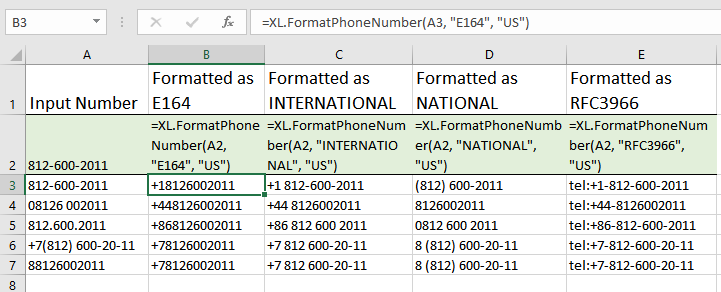
The function helps convert phone numbers to a unified format. The supported formats include E.164, International, National, RFC3966.
Before you begin, add Functions to Excel
Functions are one of the 20+ features within XLTools Add-in for Excel. Works in Excel 2024, 2019, 2016, 2013, 2010, and Microsoft 365.


Syntax
| Argument | Description |
|---|---|
| phone [required] | A text expression representing the input phone number |
| format [optional] | A preferred format for the output phone number. Supported formats: E164, INTERNATIONAL, NATIONAL, RFC3966 |
| defaultRegion [optional] | Two letters of a country code: US, GB, CN, RU, FR, etc. |
Examples [download]
Download this spreadsheet with examples and try the function yourself.
| Formula | Description |
|---|---|
=XL.FormatPhoneNumber("812-600-2011", "E164", "US") | Parses the specified string and converts it to the US phone number in E164 format |
=XL.FormatPhoneNumber(A2, "INTERNATIONAL", "GB") | Parses the string in cell A2 and converts it to the GB phone number in INTERNATIONAL format |
=XL.FormatPhoneNumber(A2, "NATIONAL", "CN") | Parses the string in cell A2 and converts it to the CN phone number in NATIONAL format |
=XL.FormatPhoneNumber(A2, "RFC3966", "RU") | Parses the string in cell A2 and converts it to the RU phone number in RFC3966 format |
Any questions or suggestions?

